What this tool does
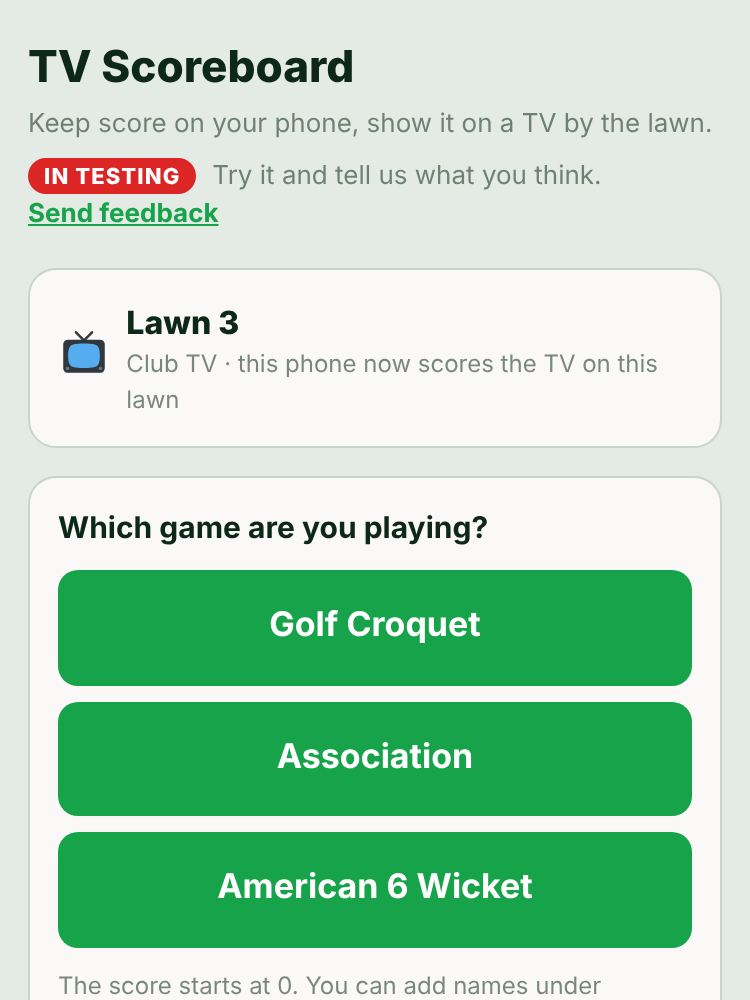
Shows one game's score on a TV beside the lawn, scored from a phone. It is separate from events: there is nothing to set up beyond the game itself. Open it at croquettools.com/tv/control, or from TV Scoreboard on the Croquet Tools home page.
Making and owning a TV needs a Croquet Tools account. Scoring on a Club TV does not.
Getting it on the TV
Each TV you make has a six-letter code. On the TV's web browser, go to https://www.croquettools.com/tv and type the code. The shorter croquettools.com/tv normally works too; if a TV browser does not open it, type the full address. The page it opens is the TV's own board; bookmark it, and the TV goes straight there next time.
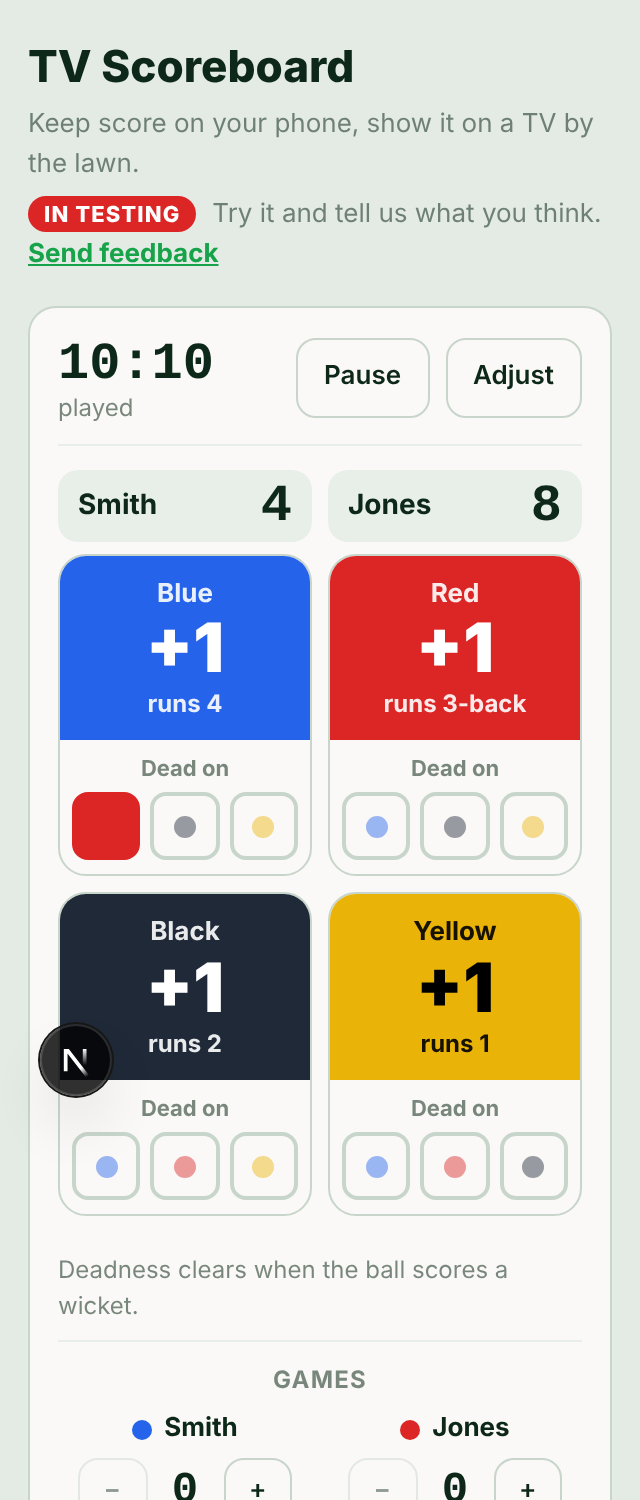
Full screen — the board shows "Press OK on the remote for full screen" while the browser's address bar is showing. One press of OK hides the bar, and turns on timer sounds at the same time. The browser's Back button leaves full screen, and the prompt comes back. Preview the TV ↗ opens the same board on the phone or computer you are using.
Rename changes the TV's name (for example "Lawn 3"). + Another TV makes a second TV with its own code, and the buttons across the top of the controller switch between your TVs. Remove retires a TV; its code stops working.
Keeping the screen on
While the board is open, the page asks the browser to keep the screen on, and plays a tiny silent video in the corner of the screen as a second signal. On most computers and TV browsers this stops the screen dimming and the screensaver starting.
A web page cannot change the TV's own power settings. A TV with a screensaver timer, a sleep timer, or an energy-saving "turn off after a few hours without the remote" setting still follows it. On a Fire TV, the screensaver start time is under Settings › Display & Sounds › Screensaver; the sleep timer and any auto power-off setting are in the TV's settings, under names that vary by make.
Starting a game
New game asks two things:
- Game — Golf Croquet, Association or American 6 Wicket.
- The TV shows — for Golf Croquet, Split colour (half the screen each, big numbers) or Names and scores (a row per side). For Association and American 6 Wicket, Scores, Clips (each ball's clip, drawn as a clip, with the hoop it is for) or Scores and clips.
Start puts the game on the TV at 0–0. Names are optional; they are added under Customise.
Or follow a game being logged on the live pad shows a game someone is logging with Live Scoring instead of the TV's own game.
Scoring
Golf Croquet — tap a side's coloured panel for +1; −1 under it takes a point back.
Association and American 6 Wicket — each ball has a tile in its own colour. Tapping the coloured top of a tile scores that ball's next hoop (it shows which, for example "runs 4") and moves its clip on. The sides' totals follow the clips. A clip that is wrong is put right under Customise › Update clips.
American 6 Wicket — under each ball's tile, Dead on has a button for each other ball. Tap one to mark the ball dead on it; tap again to clear it. A ball's deadness clears by itself when it scores a wicket. The TV shows the deadness with the ball.
Games — the − and + under each side's name correct the games won.
The controller is laid out to fit a phone screen: the timer, all four balls, games and End game show together.
Several phones can score the same TV at once; each sees the others' taps.
The game timer
+ Add a timer picks a time limit (45 min to 3 hours, No limit to count up, or Other in hours and minutes). The timer starts stopped: Start, then Pause and Resume.
Adjust opens:
- Correct the time left (or Correct the time played) — −5, −1, +1, +5 minutes, or Set to an exact h:m:s. For a timer someone forgot to start or resume.
- Time limit — changing the limit keeps the time already played.
- Back to the start and No timer.
With a time limit, the timer counts down and then shows over time as "+m:ss" in red.
Sounds
Under Adjust › Sounds (timers with a time limit):
- Sound when time is up — horn notes for about 10 seconds, then it stops. On unless unticked.
- Warning before the end — Off, 1, 2, 5, 10 or 15 min, or Other. Two short beeps at that time left; the timer turns amber until the end.
- Play the sounds on this phone too — the phone also beeps and vibrates. Remembered per phone.
- ▶ Hear the warning and ▶ Hear time up play each sound now.
The TV shows a 5 MINUTES LEFT (or similar) banner at the warning and TIME at the end, with or without sound.
Why the TV asks for a button press: web browsers do not let a page play sound until someone has pressed or tapped something on it. TV browsers, Chromecast, Fire TV and computers all follow this rule. Until then the board shows "Press OK on the remote to turn on timer sounds"; one press of OK turns sound on for as long as the page stays open. The board does not reload itself for a site update while a timer is running.
Customise
Customise under the score holds the less frequent changes:
- Game and The TV shows — change mid-game. The score stays when the scoring stays the same (Golf Croquet counts points; Association and American 6 Wicket count clips).
- Names (optional) and Save names.
- Colours (Golf Croquet) — each side's colour.
- Update clips (Association, American 6 Wicket) — set any ball's clip directly.
- Show the time of day on the TV.
- Name size on the TV — Normal, Large or Huge: players' names on Golf Croquet boards and the Association and American 6 Wicket Scores look. A name too long to fit at that size is made smaller to fit on one line; shorter names stay at the chosen size.
- Timer size on the TV — Small, Medium, Large or Huge (the default). The timer and clock sit in a solid black band across the top of the TV; the size is the band's height, and the game fills the rest.
- Background — Dark · shade or Light · bright sun; Golf Croquet's Split colour adds Full colour (each half filled with the side's colour).
- Save as my default — see Your default.
How big things are on the TV
On a 50-inch TV (about 24.5 inches tall), the timer digits are about 1.6, 2.6, 3.9 and 5.5 inches tall at Small, Medium, Large and Huge. Golf Croquet's Split colour scores are about 6.5 inches with the Huge timer, and Association clip numbers about 4.4 inches. As a signage rule of thumb, bold high-contrast text reads from about 25 to 30 feet per inch of height.
End game
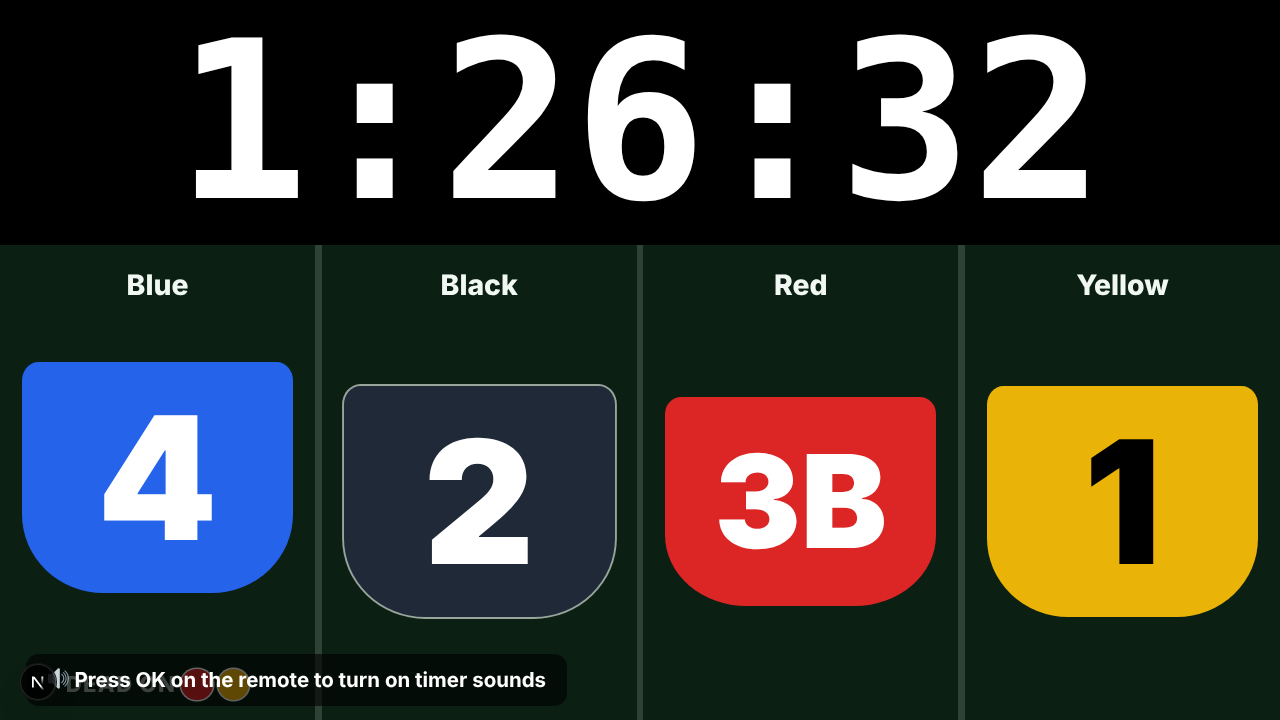
End game asks what happens next:
- Next game — the winner's game goes on the games count; the score goes back to 0, clips to hoop 1, the timer to its start. When the score is level it asks which side won the game.
- New match (games 0–0) — the same names and settings, every count back to 0.
- Close the board — the TV goes back to its name and code, waiting for the next game.
- Keep playing — closes the question.
TV layout
TV layout on the TV's card chooses between Simple (the game fills the screen) and Custom (your own boxes and pages, like the Display Board).
A custom board is pages of rows, each row split into boxes, one thing per box: Score, Deadness board, Game timer, Clock, Message, Photos / sponsors, QR code or Blank. Tap a box in the page's picture to change it; Narrower / Wider, Shorter / Taller, + Box beside, + Row below and Take box out shape the page. Even out this row gives every box in the row the same width, and Even out the rows gives every row on the page the same height. A Game timer box hides when the game has no timer, and a Deadness board box hides unless the game is American 6 Wicket.
Pages take turns — Change page every sets how long each page stays; a page's own Shown for time overrides it, and Skip this page leaves it out for now. + Add a page adds another. Nothing reaches the TV until Save to the TV.
The custom board belongs to the TV, not the game: New game, Next game and New match keep it. Simple goes back to the game filling the screen.
Your default
Customise › Save as my default stores how this TV looks and how its game starts: the game and what the TV shows, background, timer size, clock, TV layout, and the time limit with its warning and sounds. Your new TVs and new games then start like this. It is saved on your account, so it applies from any phone you sign in on.
Club TV
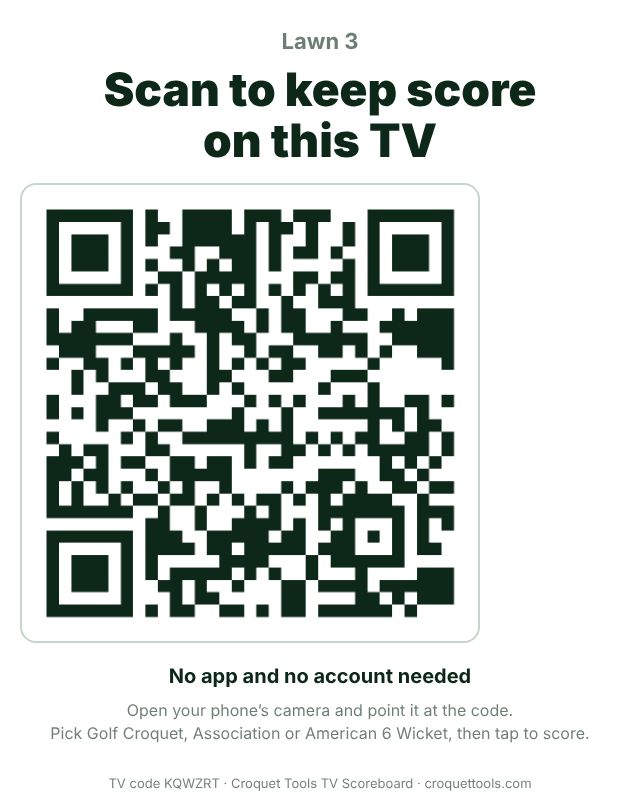
A Club TV can be scored by anyone at the lawn, with no account: they scan a QR code taped to the TV, and their phone becomes the scorer for that TV.
On the TV's card, tick Club TV. Then:
- Print the QR sign ↗ opens a page to print — the TV's name, a large QR code, and "Scan to keep score on this TV". Tape it to the TV or beside the lawn.
- Try it as a player ↗ opens what a player sees.
- New QR code makes a new code; printed signs with the old one stop working.
Unticking Club TV stops every printed code working.
What players see
Scanning the code opens the scorer for that TV with the question Which game are you playing? — Golf Croquet, Association or American 6 Wicket. The game starts from the owner's default: its look for that game when the default is the same game, and its timer, warning and sounds. Players score, use the timer, add names, change the game and end the game; the TV's background, timer size, clock and layout stay as the owner set them.